Prepare OPNsense and Security Onion Installation Media
In this tutorial you will create two virtual machines (VMs): one OPNsense VM to provide routing for virtualized lab networks, and one VM to run Security Onion. On this page you are going to download the installation media needed to create those VMs and verify that the installation media is valid.
Download, Validate, and Prepare the OPNsense Installation Media
- Open a browser and go to OPNsense’s download page.
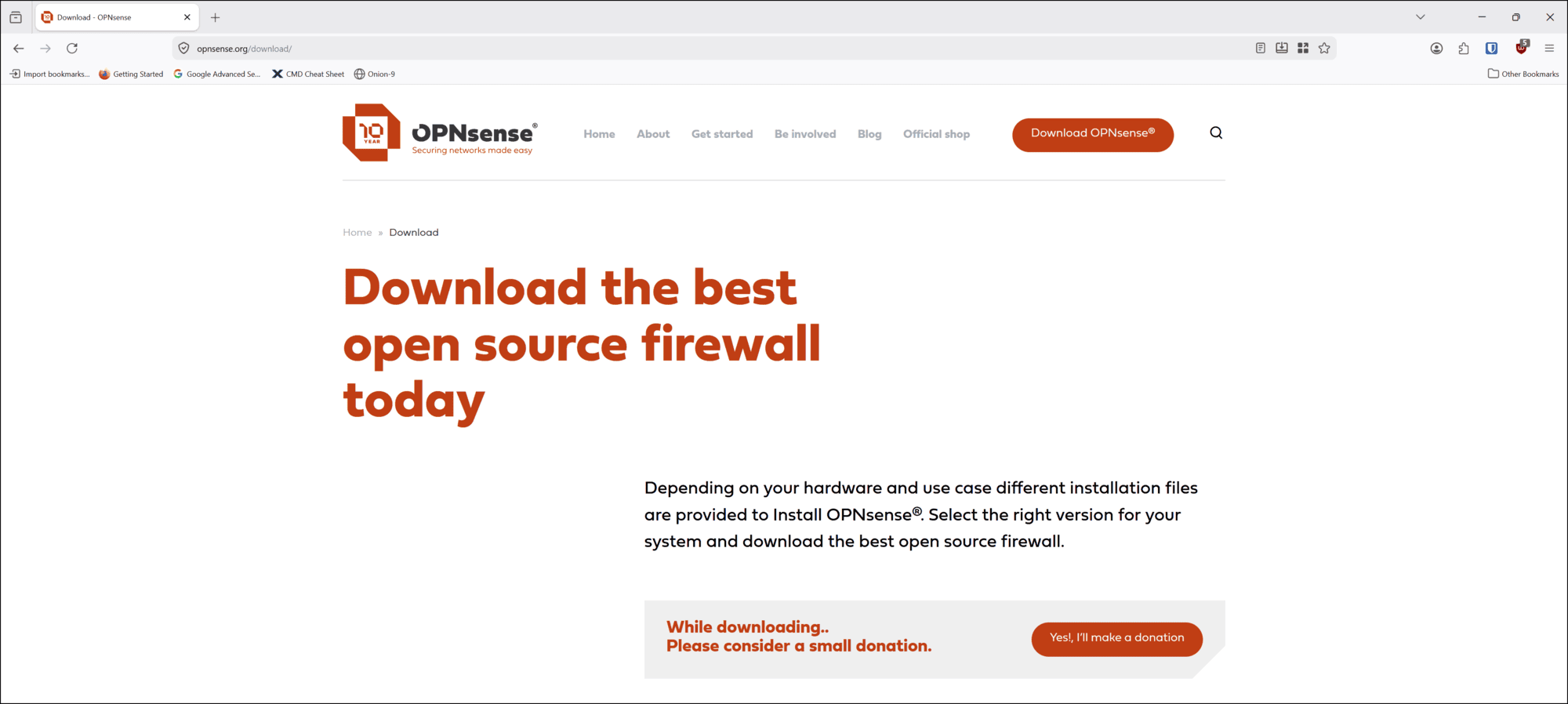
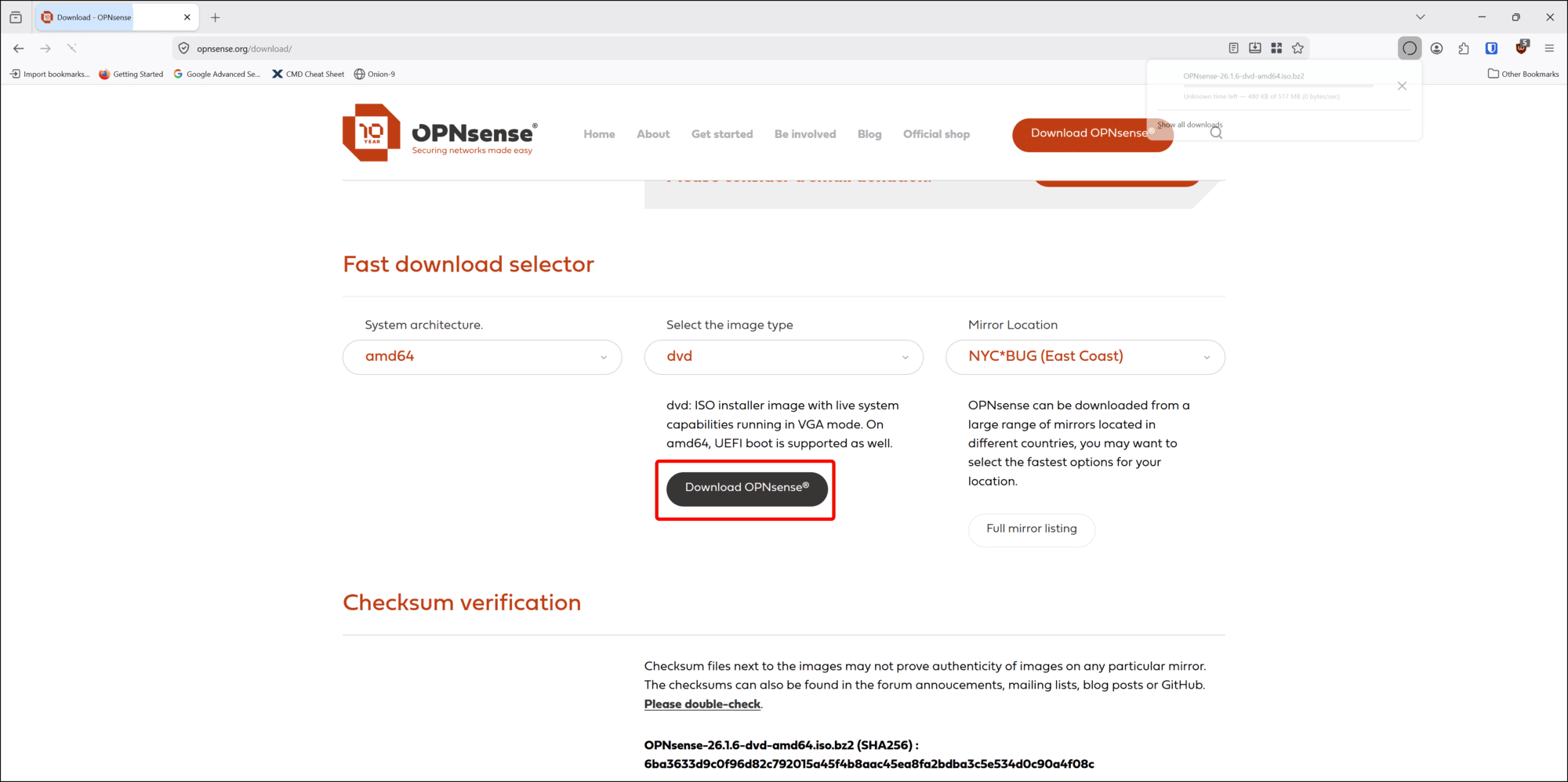
- Use the drop-down menus to select your processor’s System architecture and the image type. Select amd64 as the architecture and dvd as the media image type.
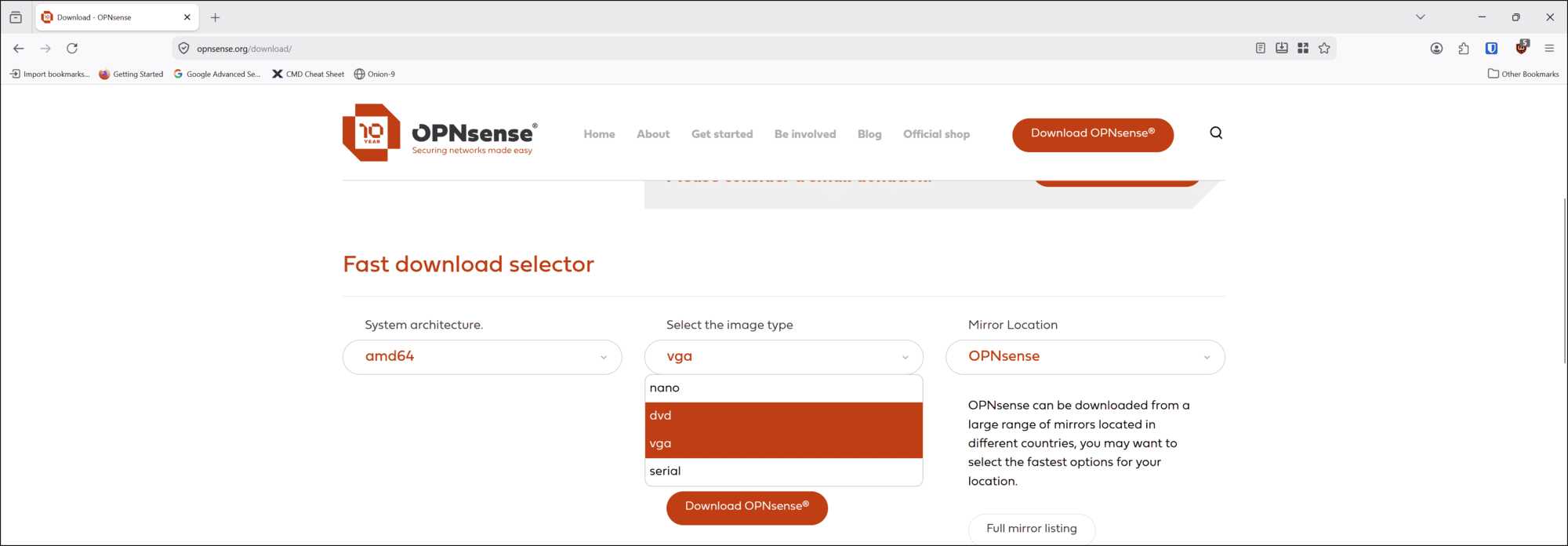
-
Scroll down the page and select the OPNsense Mirror Location where you want to download your media from.
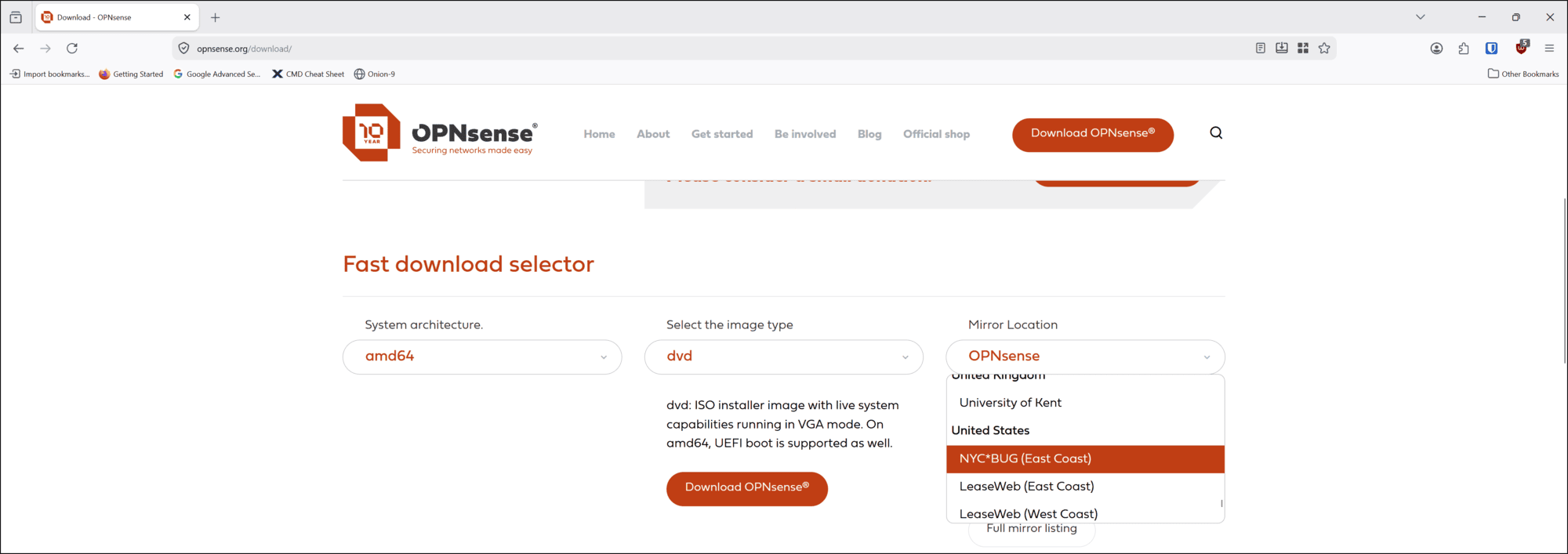
-
You can also scroll down the page to see the full list of mirror sites:
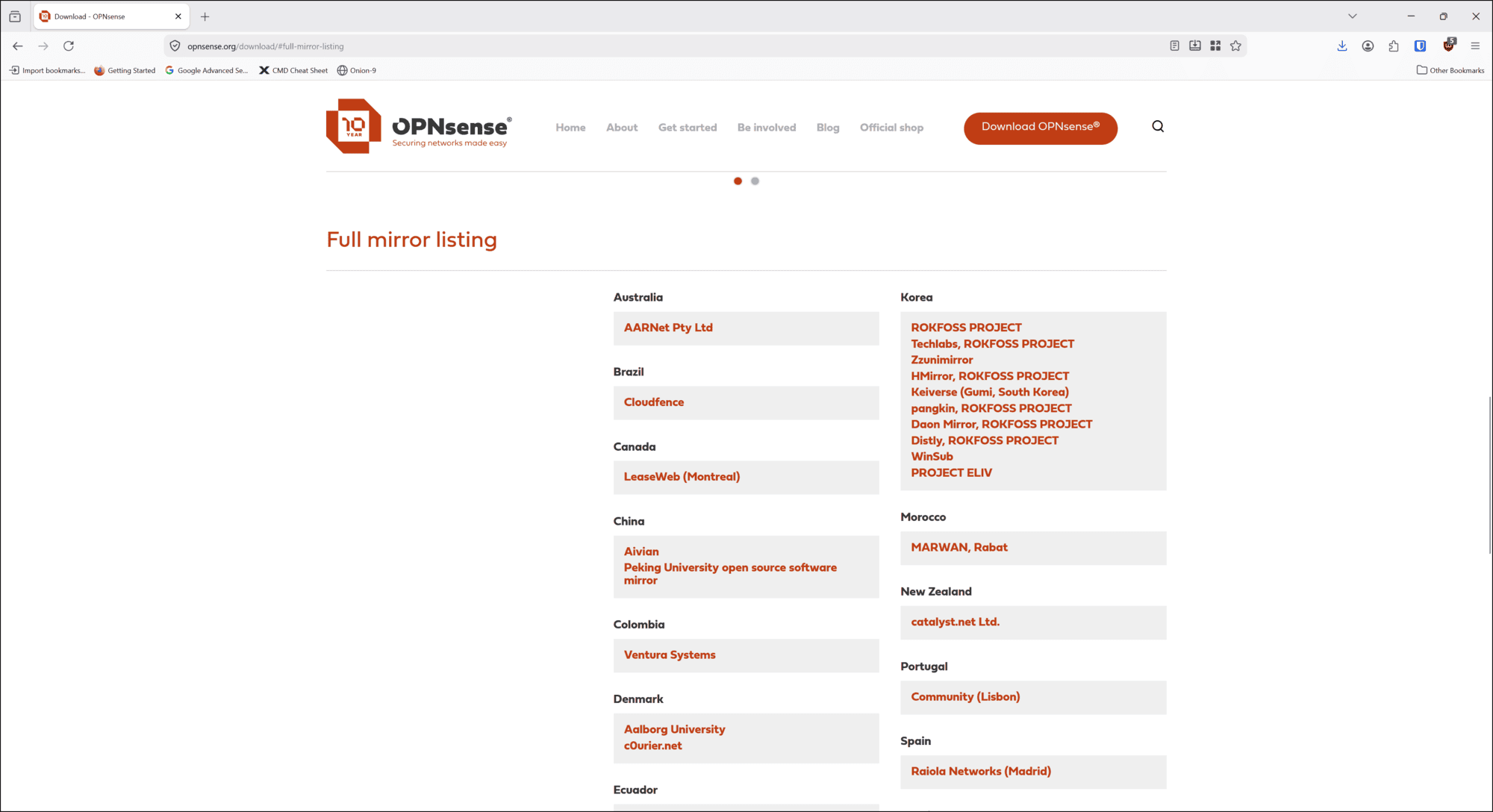
-
If you click the link for one of the mirror sites, you will see all of the files available for download, including the different architectures, image types, and signature files to verify the media.
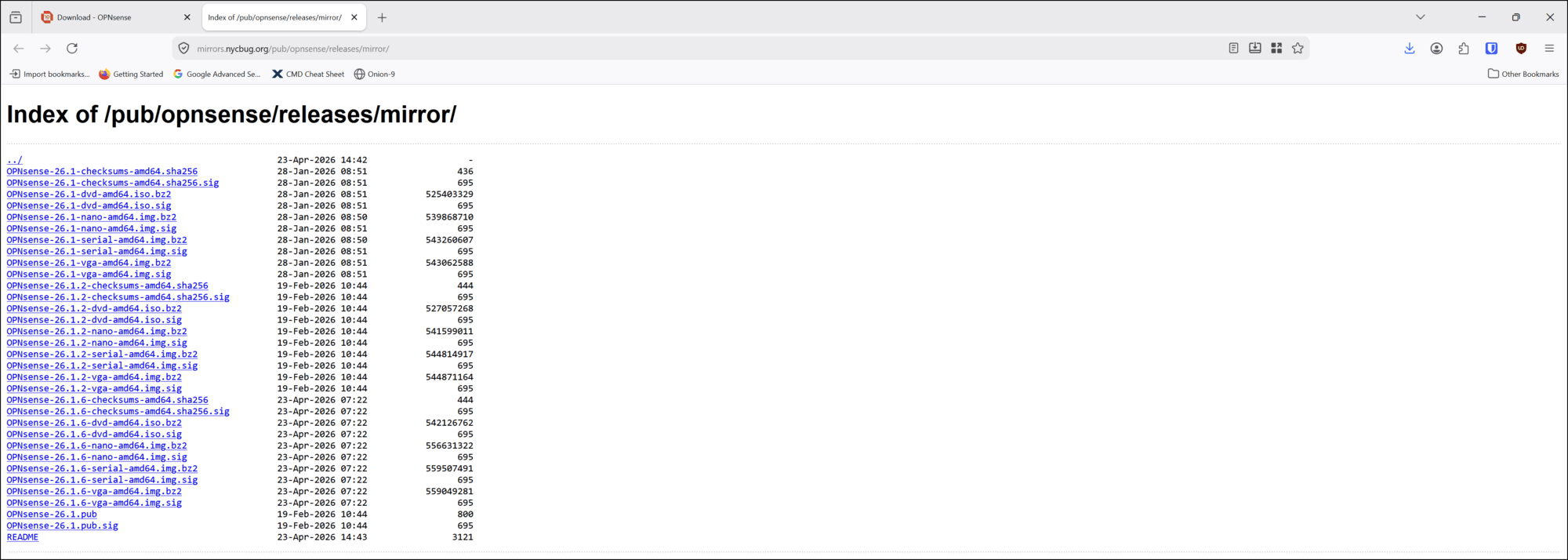
-
- After selecting each option, click the Download OPNsense button.
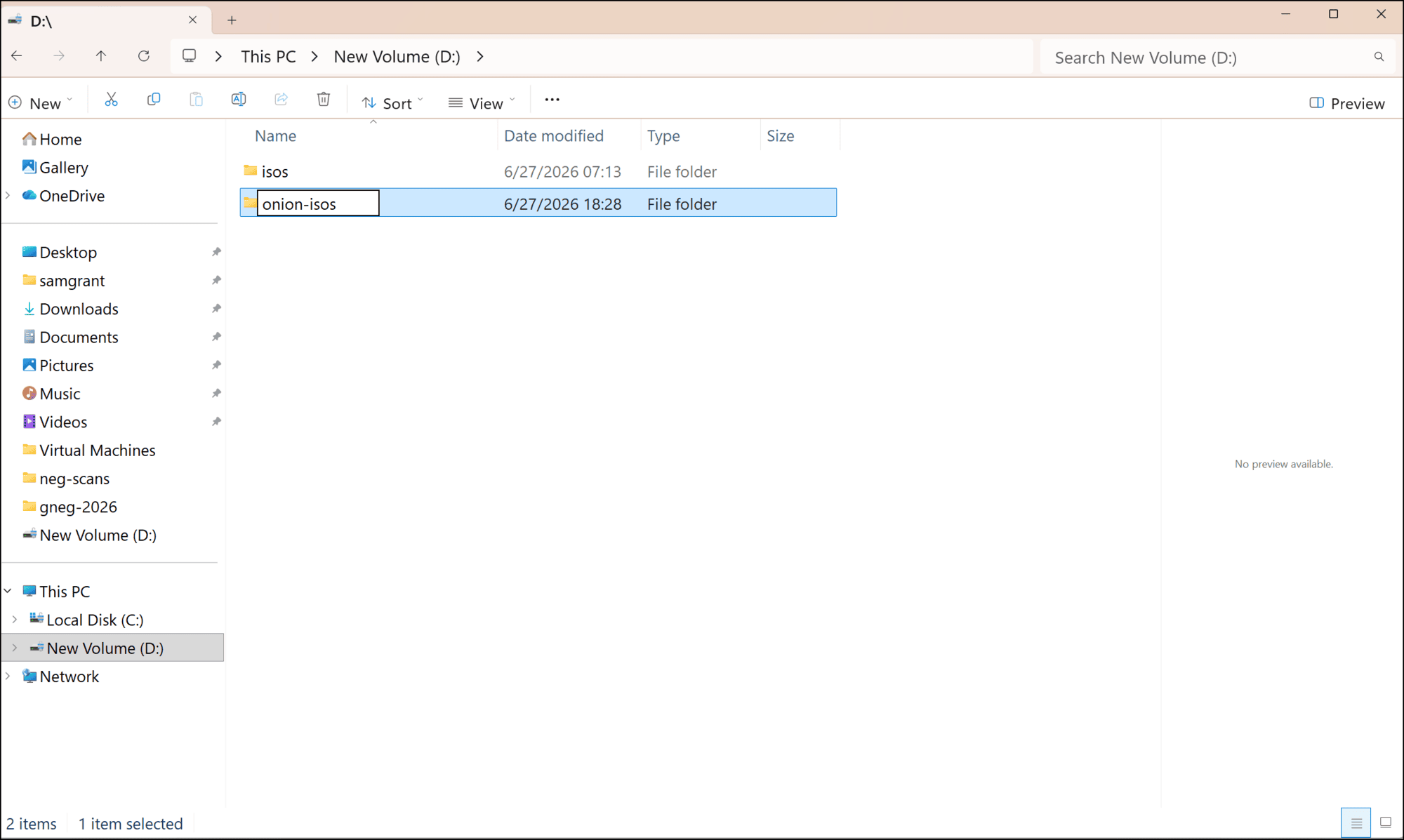
- Move these files from your local machine’s download folder into their own folder. In this series I am going to put my installation media in a folder called onion-isos.
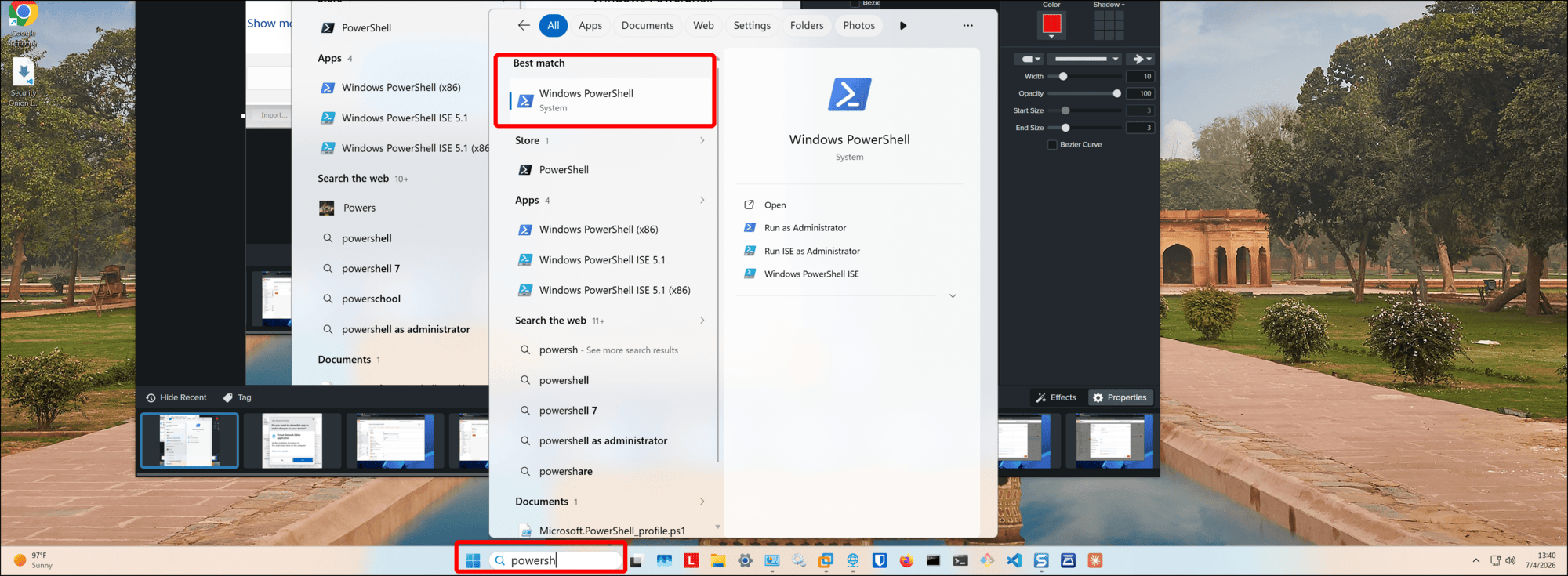
- Next I will check that the hash on the file matches what is on the OPNsense downloads page. Open a command line application. In this case I am using PowerShell, which I can open by typing powershell in the search bar in the taskbar and then clicking Windows PowerShell in the results.
- On the command line, navigate to the folder where you put the OPNsense files.
> cd D:\onion-isos\ -
Now use
certutilto check the SHA256 hash of the file you downloaded from OPNsense.org:\> certutil.exe -hashfile .\OPNsense-26.1.6-dvd-amd64.iso.bz2 SHA256. -
The output of the command shows the hash:
SHA256 hash of .\OPNsense-26.1.6-dvd-amd64.iso.bz2: 6ba3633d9c0f96d82c792015a45f4b8aac45ea8fa2bdba3c5e534d0c90a4f08c CertUtil: -hashfile command completed successfully. PS D:\onion-isos> -
Make sure the SHA256 value that the
certutilcommand generates matches what is on OPNsense’s download page.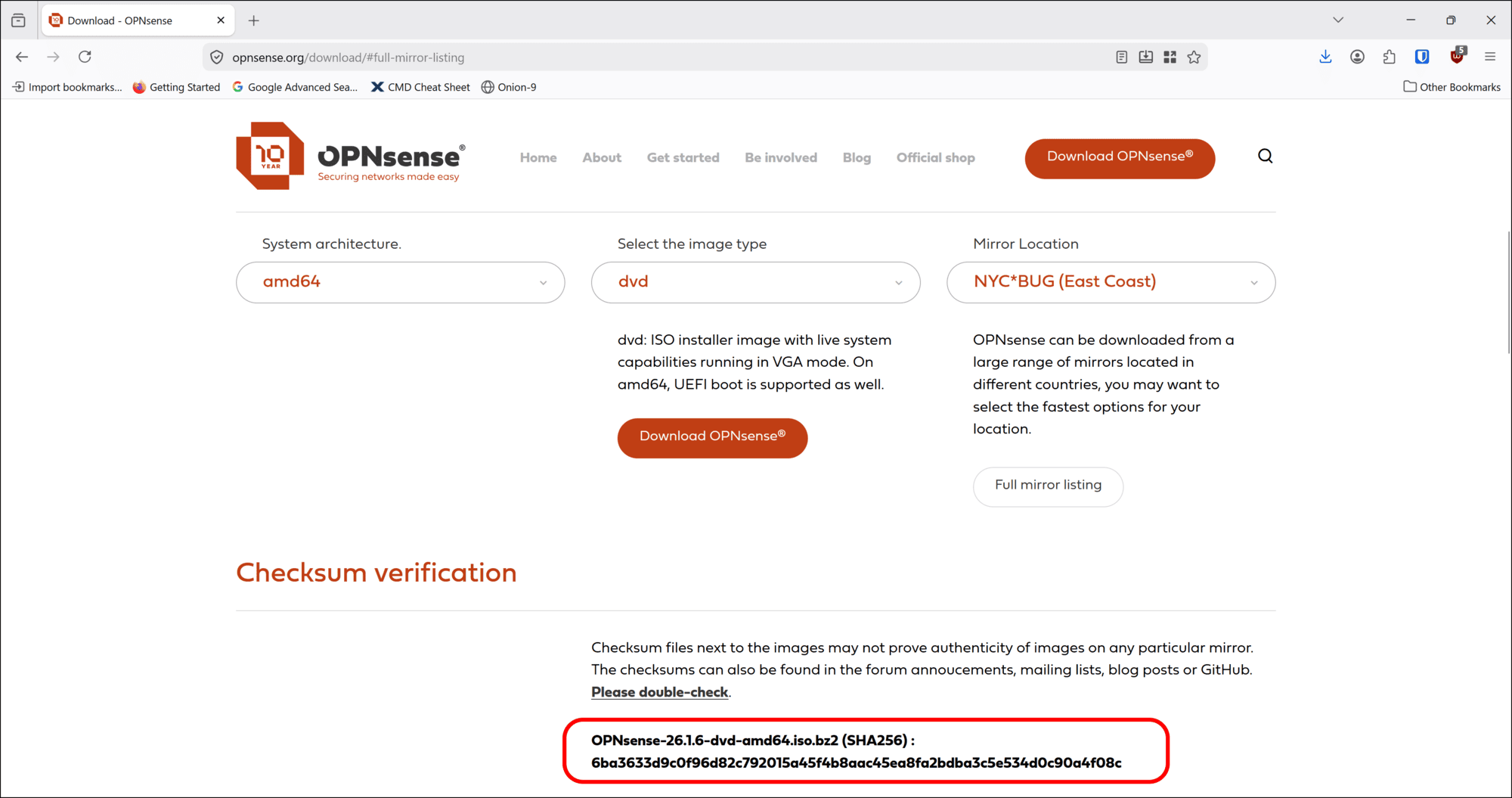
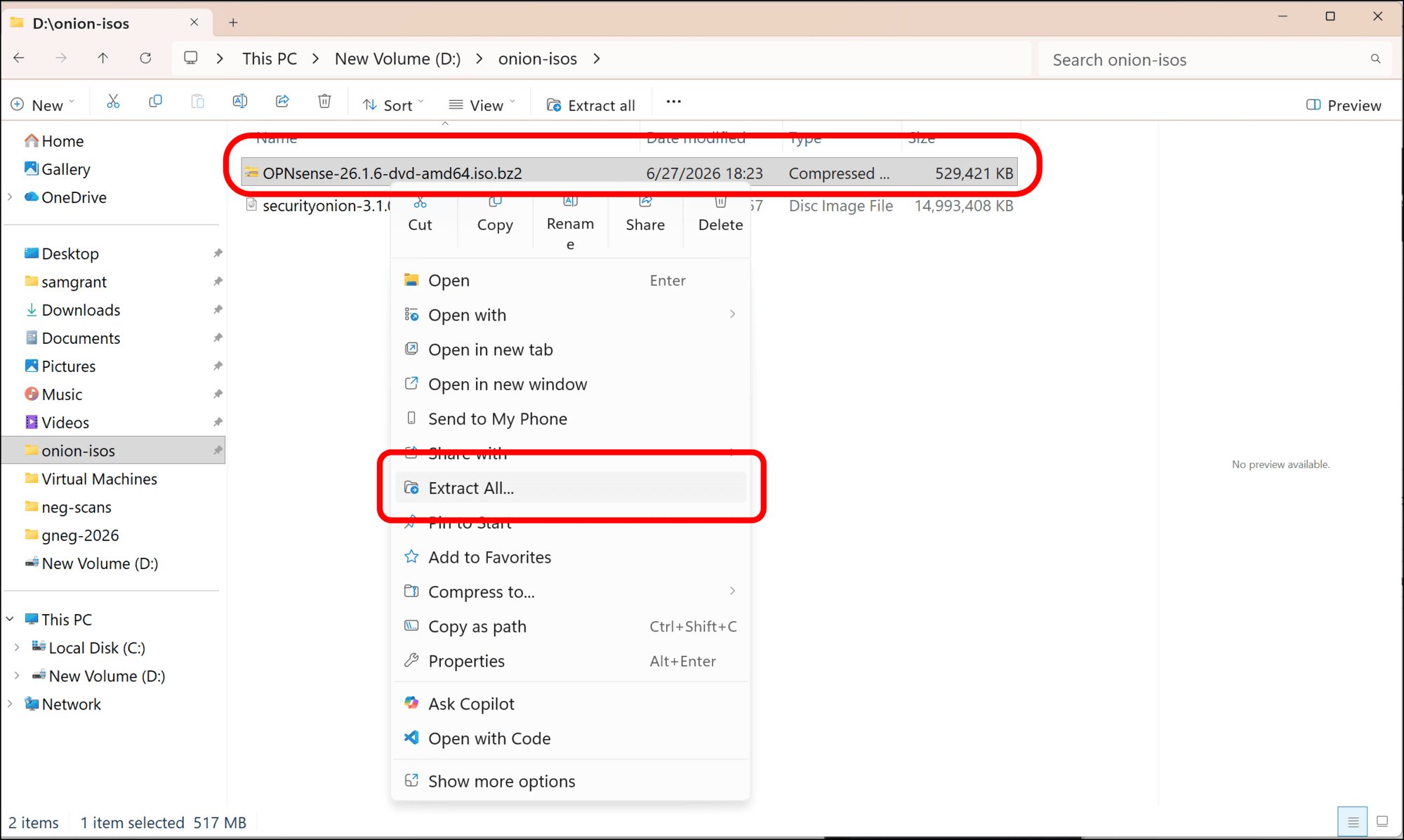
- In the Windows File Explorer, right-click the .iso.bz2 file in your onion-isos folder and select Extract All… from the context menu.
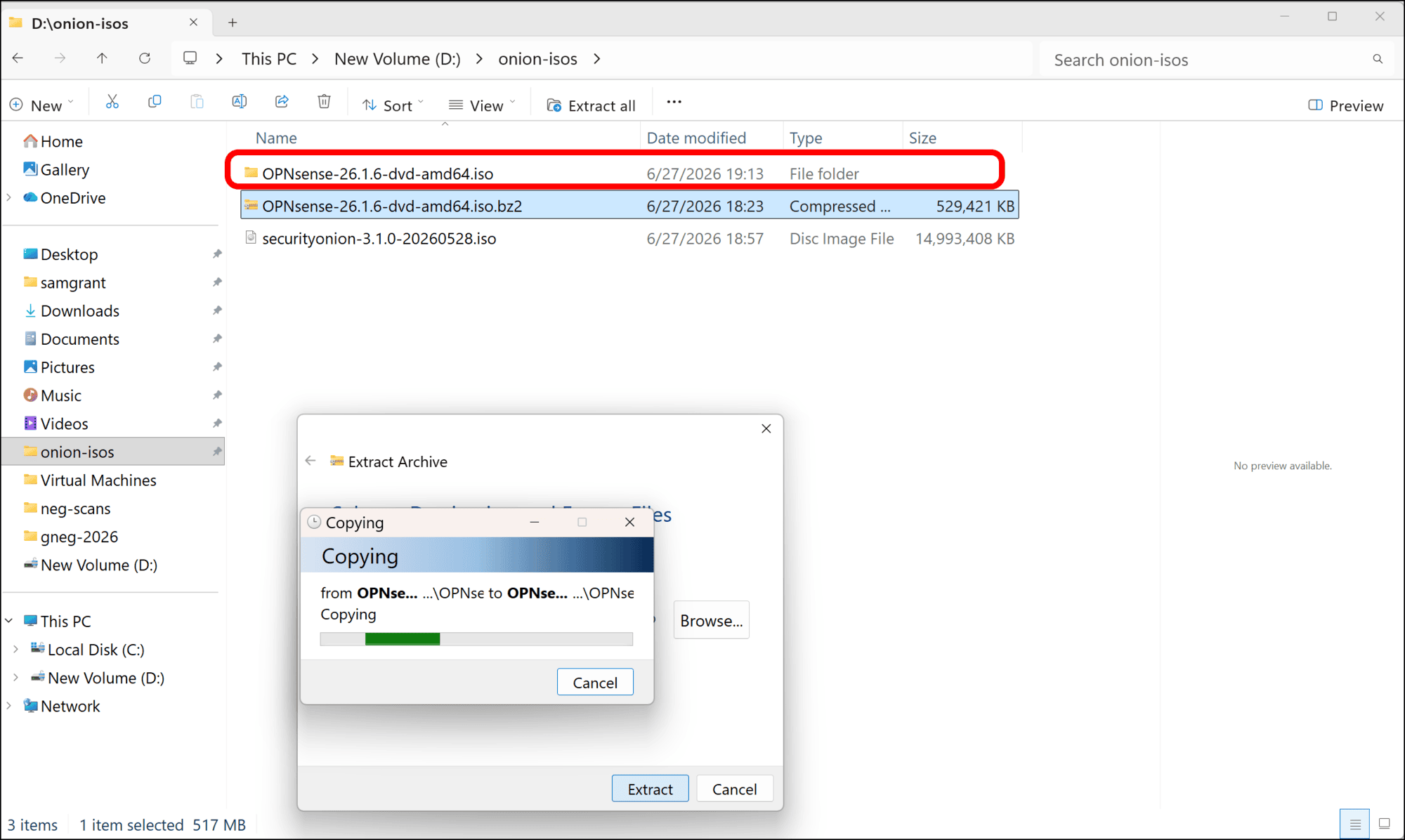
- The extraction process creates a new folder in the current folder, ending in .iso.
- The ISO file is within the extracted folder,
<OPNsense-filename>.iso.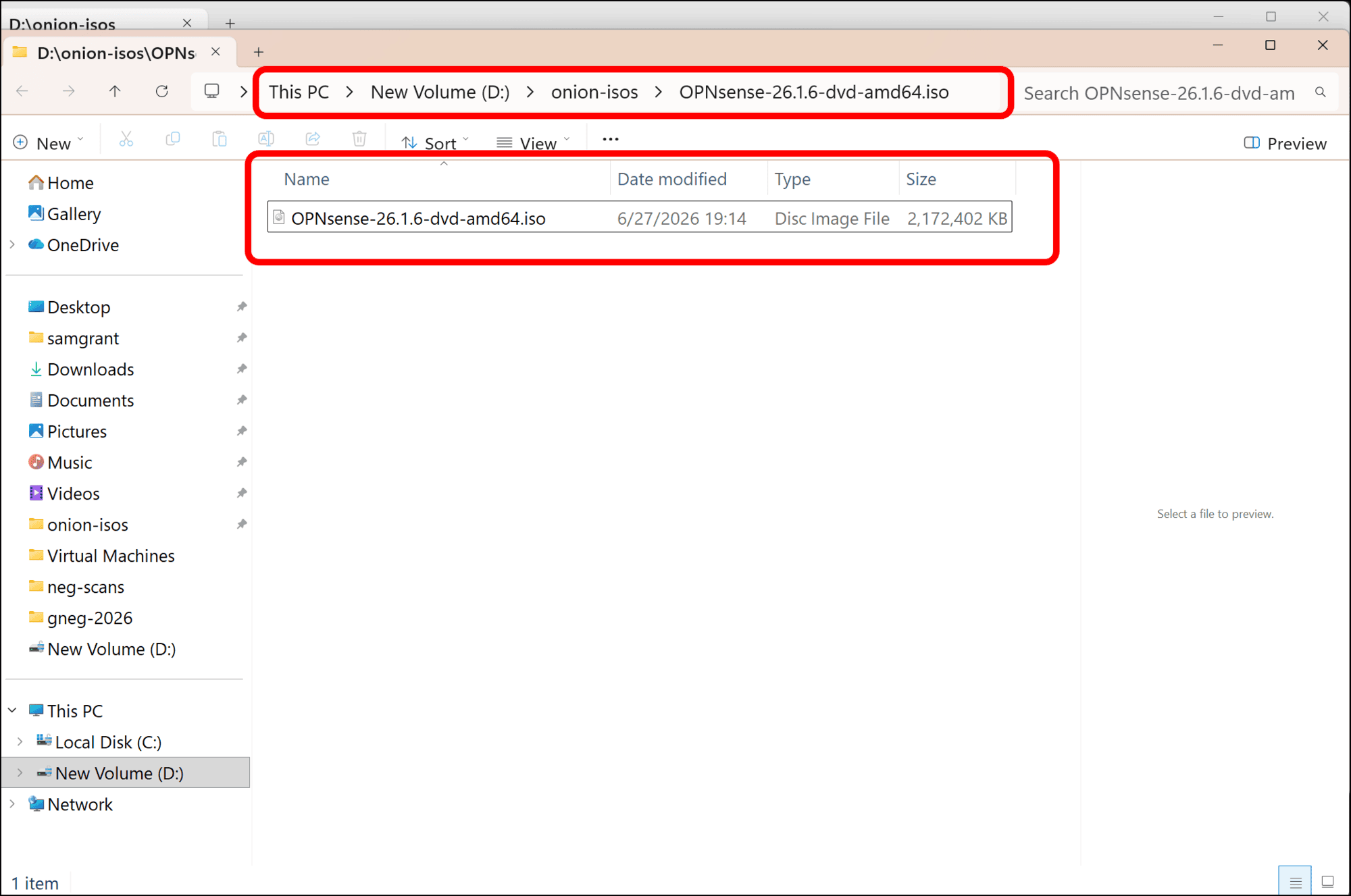
Your OPNsense ISO is ready for installation.
Download, Validate, and Prepare the Security Onion Installation Media
-
You can download the current Security Onion ISO from their GitHub repo. The download link for the latest ISO is under Download and Verify.
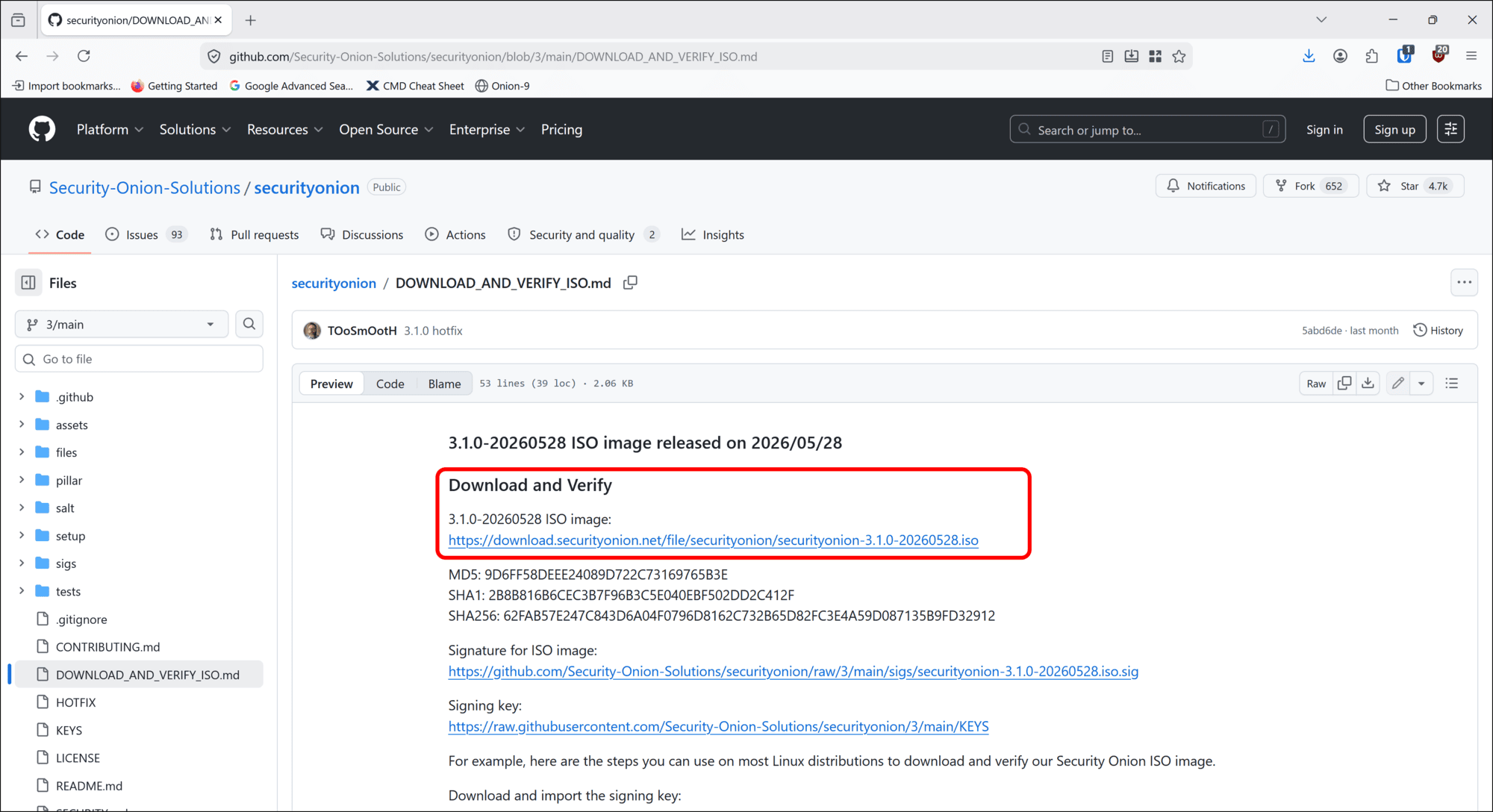
-
Right-click the link and select Save Link As… from the context menu.
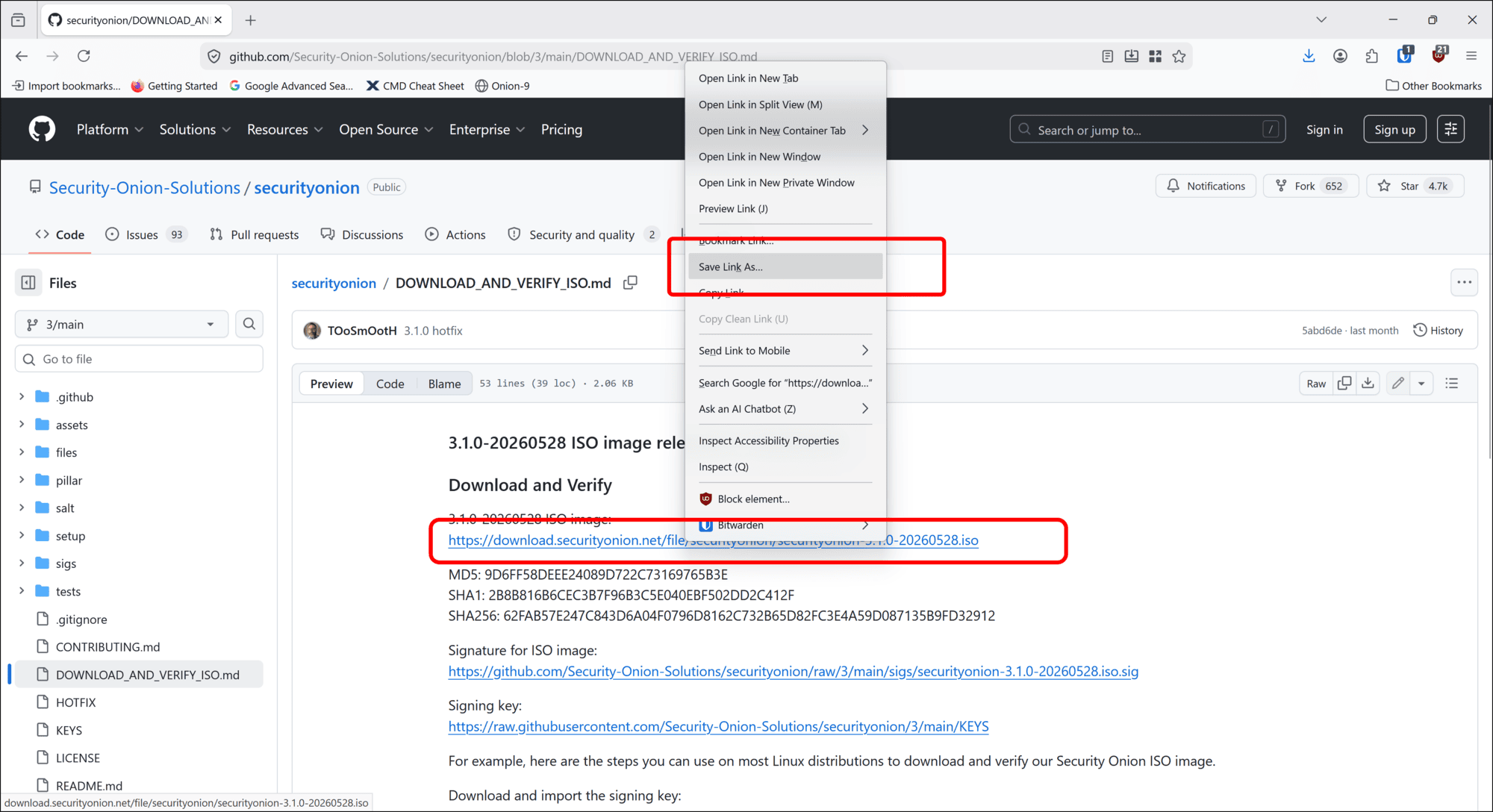
-
Save the file to the same location that you saved your OPNsense download.
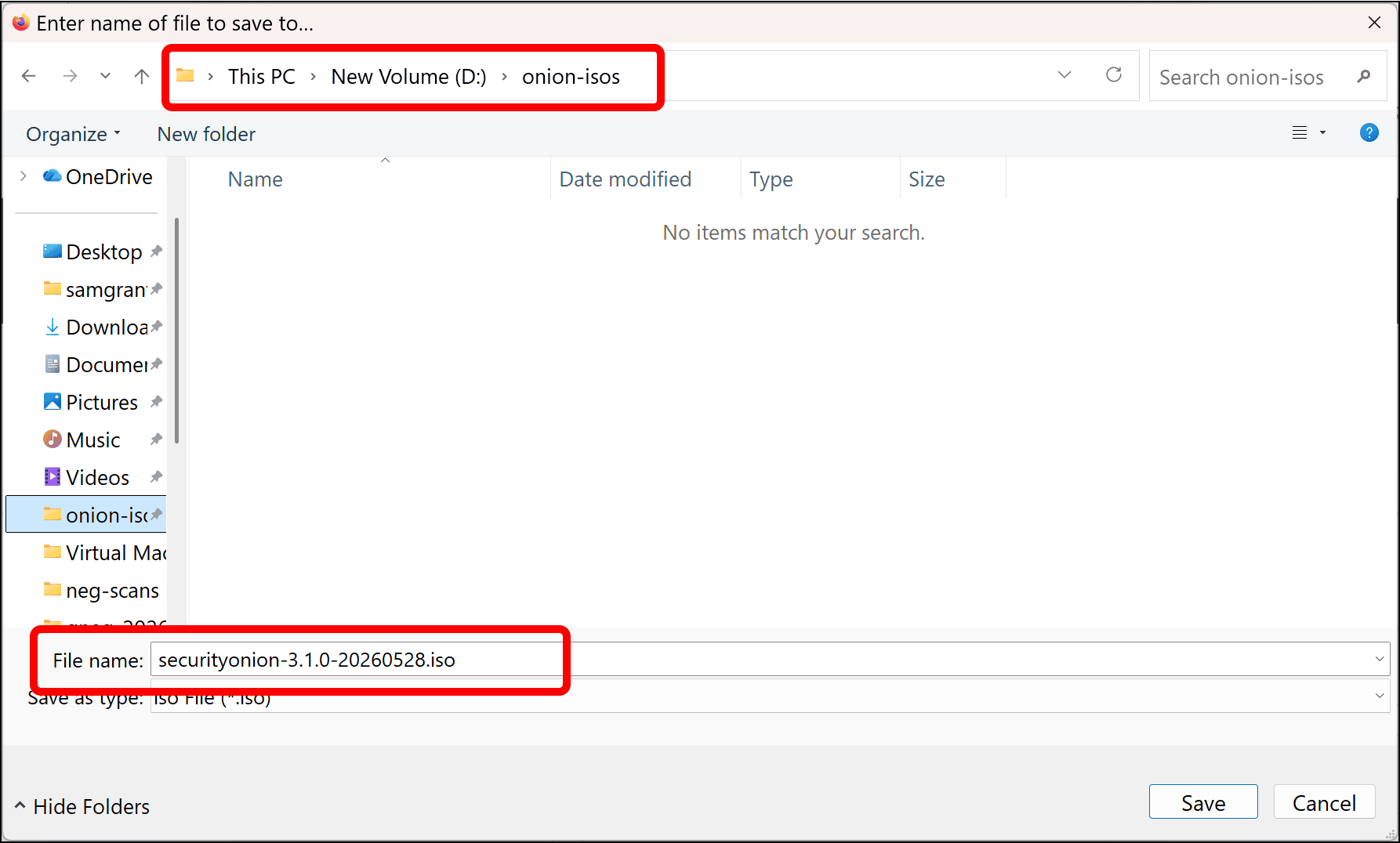
-
When the file download is complete, use the PowerShell
certutilcommand again to generate the SHA256 hash for the ISO file you downloaded.> certutil.exe -hashfile .\securityonion-3.1.0-20260528.iso SHA256 SHA256 hash of .\securityonion-3.1.0-20260528.iso: 62fab57e247c843d6a04f0796d8162c732b65d82fc3e4a59d087135b9fd32912 CertUtil: -hashfile command completed successfully. -
Verify the hash value against the one on Security Onion’s GitHub:
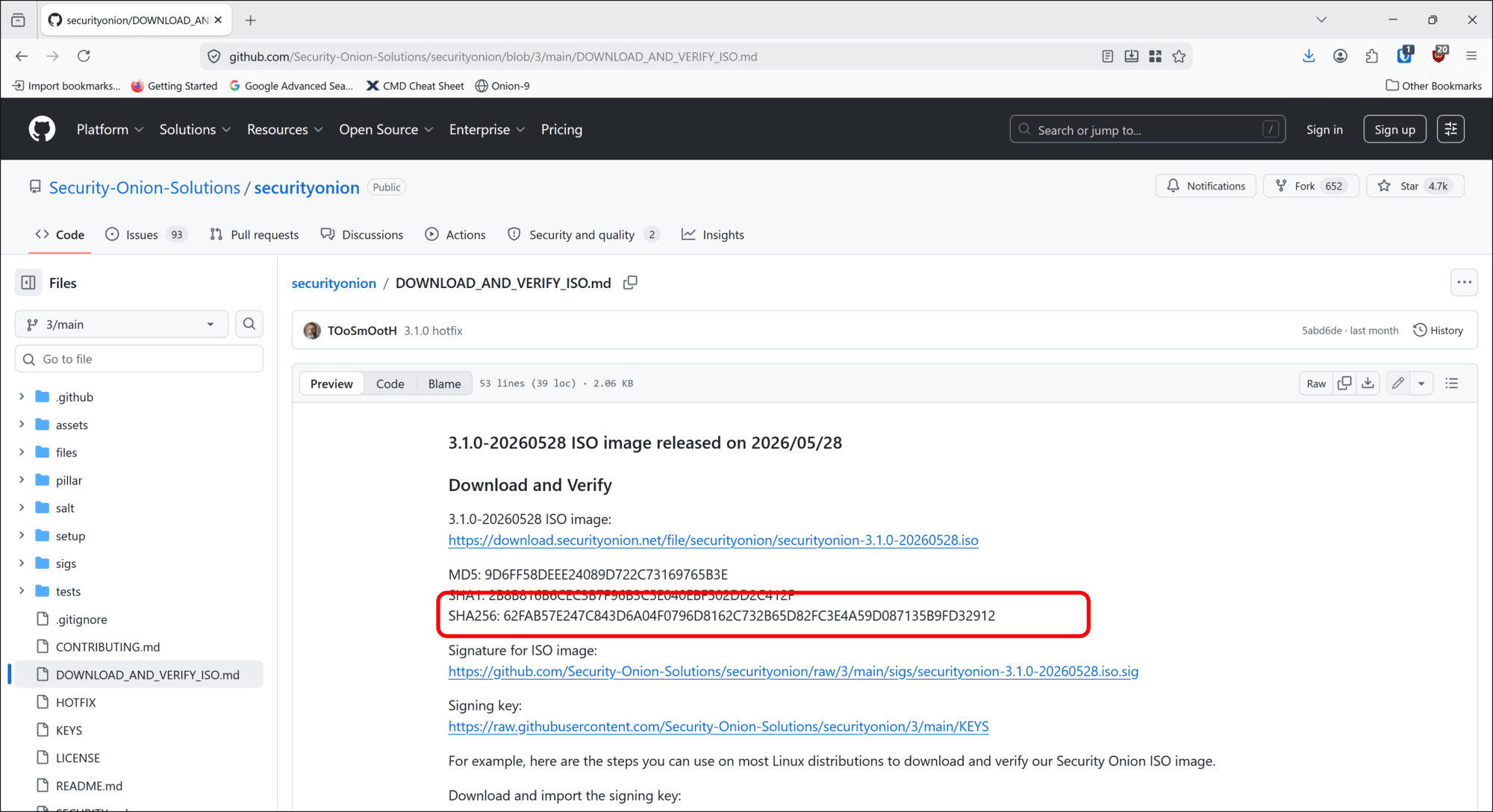
Your Security Onion ISO is ready for installation.