Prepare OPNsense and Security Onion Installation Media
I created this tutorial in mid-2022. In mid-2026 the content is over four years old and has accuracy and currency issues, particularly when it describes older versions of Security Onion and OPNsense. While this tutorial is no longer current, I am leaving it up because it is a professional writing sample that I put a lot of work into and it may still be useful to some readers. For more information, see Security Onion: Creating a Virtual Lab Environment—macOS, 2022.
- Download, Validate, and Prepare the OPNsense Installation Media
- Download, Validate, and Prepare the Security Onion Installation Media
In this tutorial you will create two virtual machines (VMs): one OPNsense VM to provide routing for virtualized lab networks, and one VM to run Security Onion. On this page you are going to download the installation media needed to create those VMs and verify that the installation media is valid.
Download, Validate, and Prepare the OPNsense Installation Media
- Open a browser and go to OPNsense’s download page.
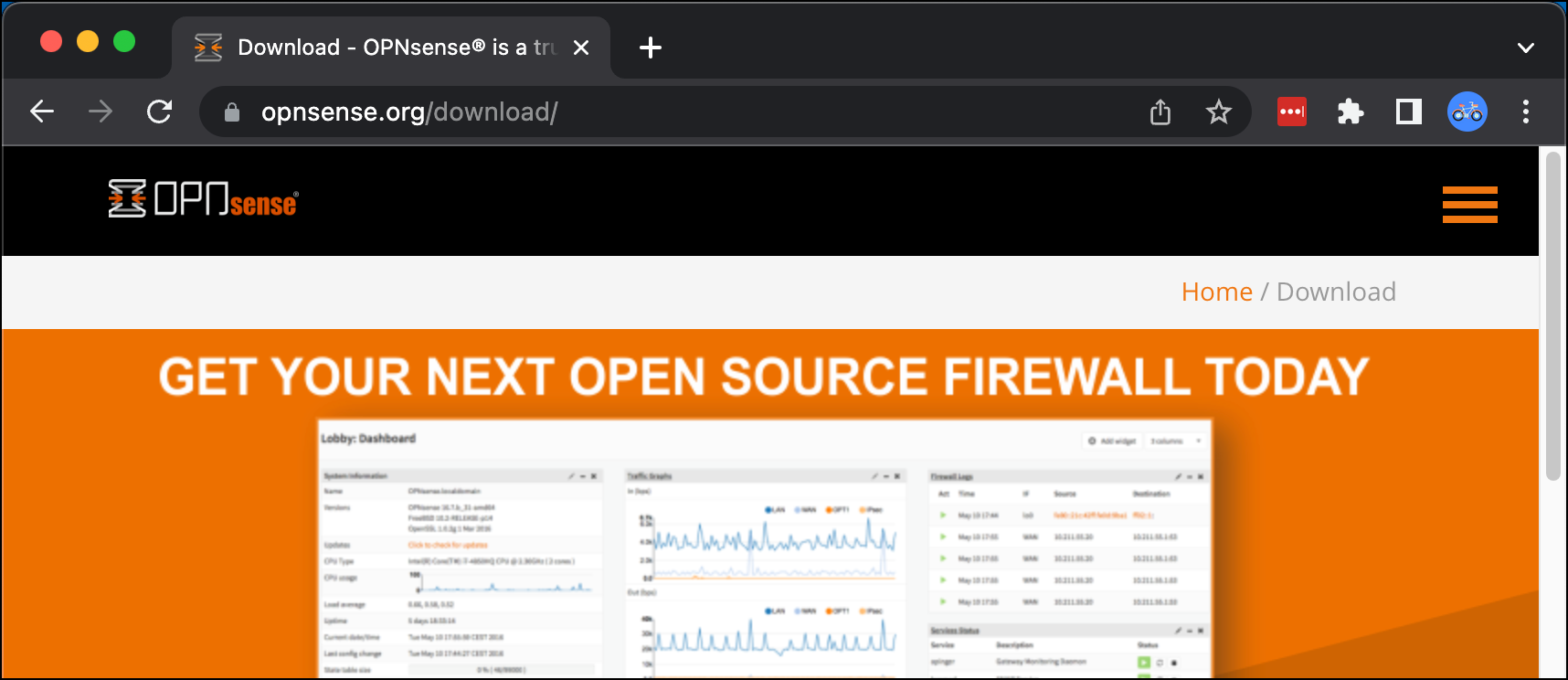
- Use the drop-down menus to select your processor Architecture. I am using amd64 and select the media image type. I am using dvd.
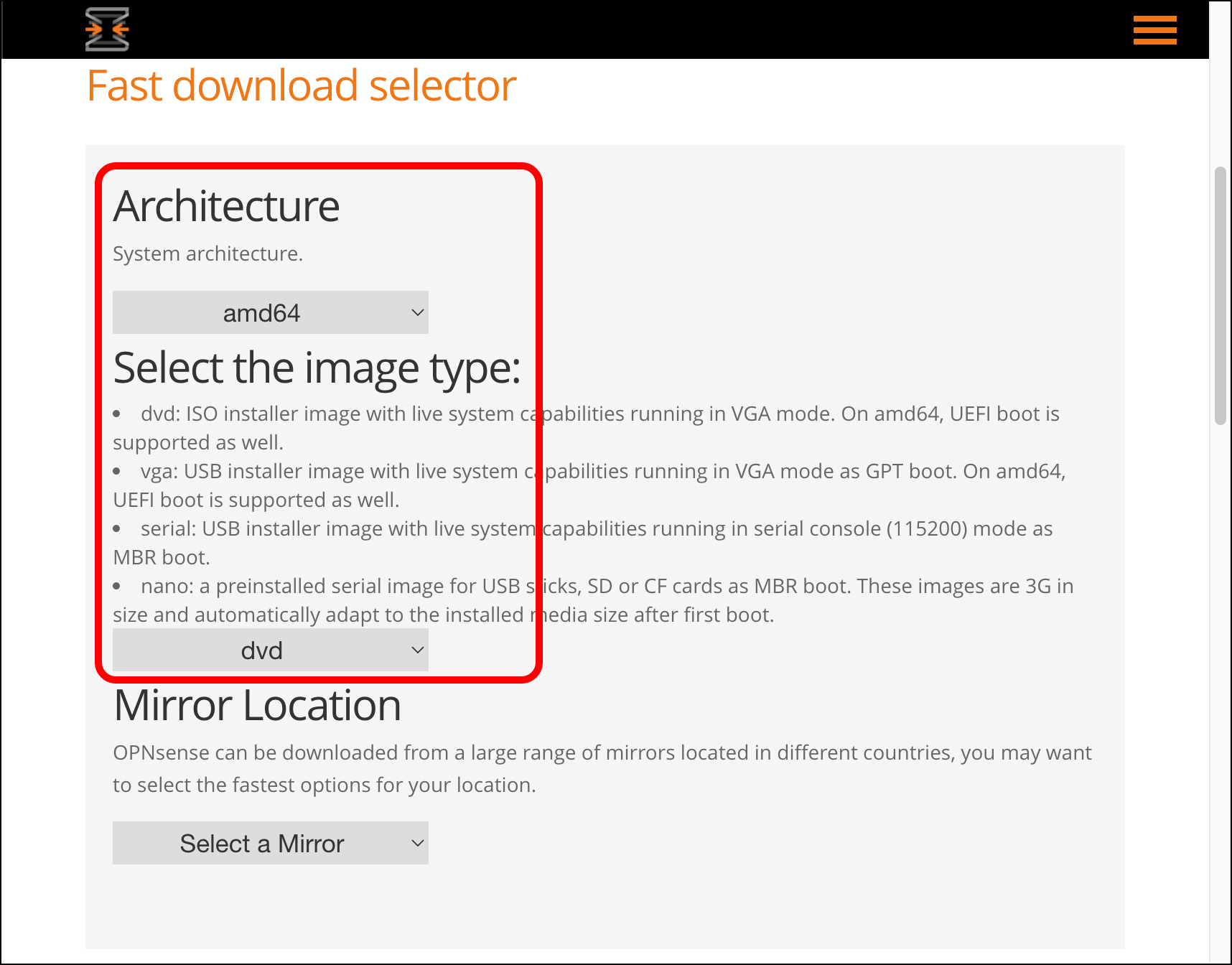
- Scroll down the page and select the OPNsense mirror where you want to download your media from. I am picking one in the United States.

-
Download the following files from the mirror’s index page:
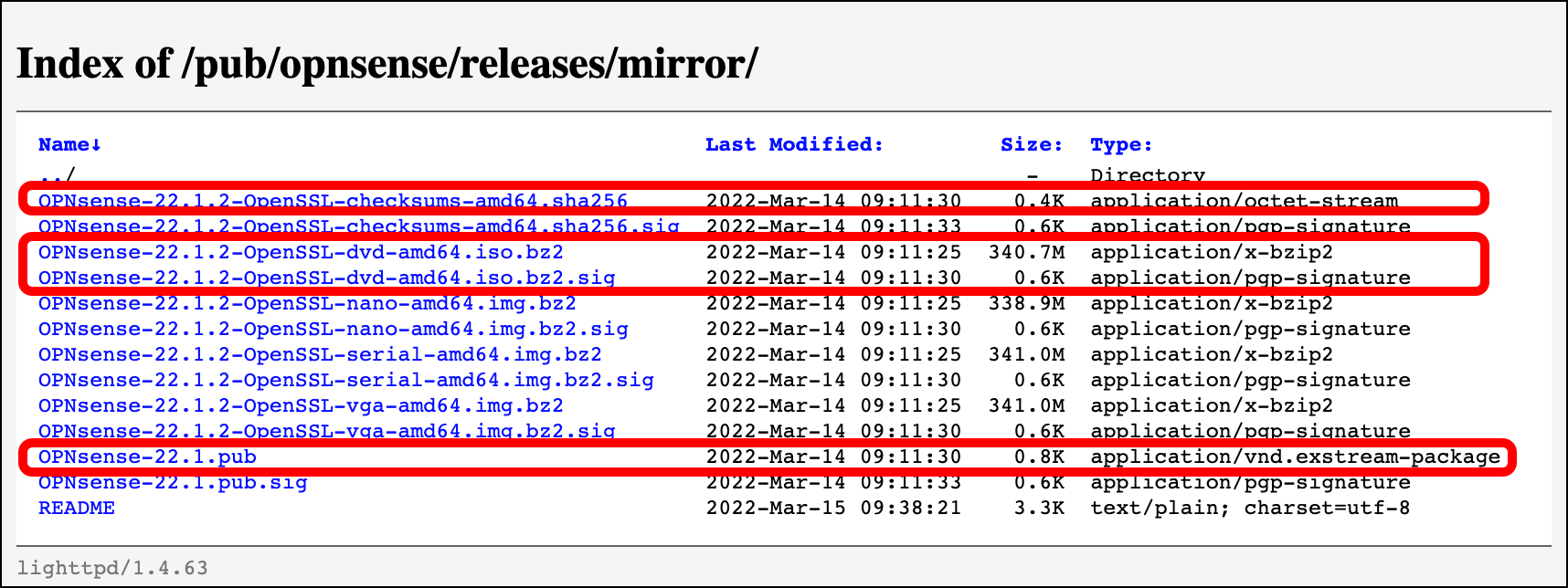
OPNsense-<version-number>-OpenSSL-checksums-amd64.sha256OPNsense-<version-number>-dvd-amd64.iso.bz2OPNsense-<version-number>-dvd-amd64.iso.bz2.sigOPNsense-<version-number>.pub
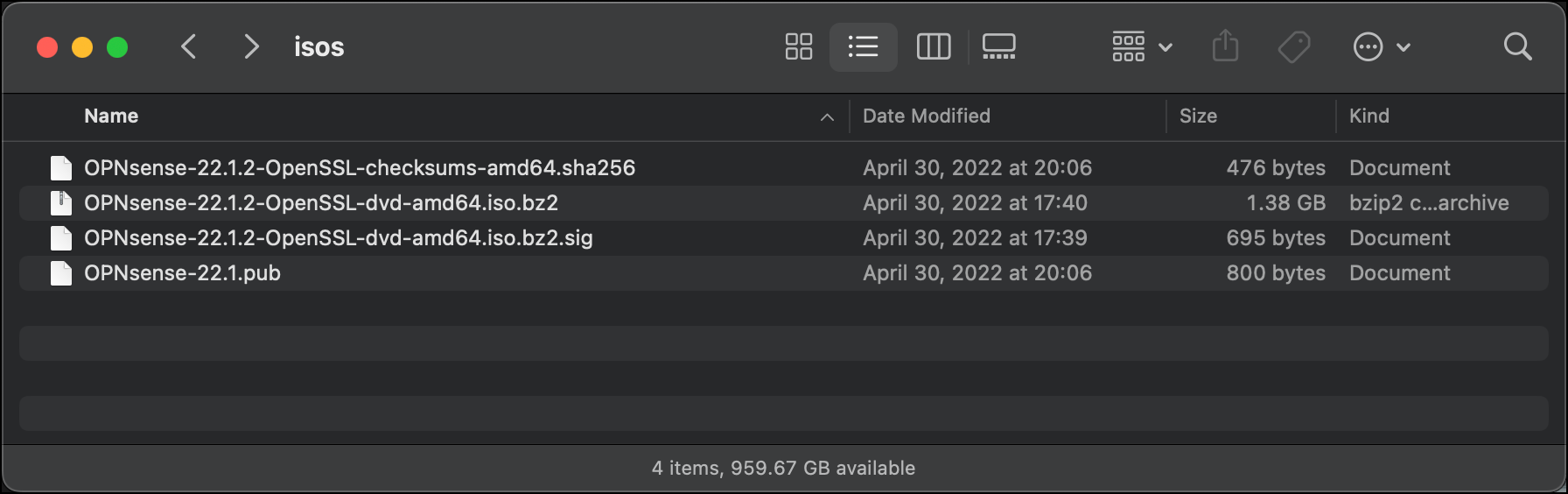
- Move these files from your local machine’s download folder into their own folder. I named my folder isos.
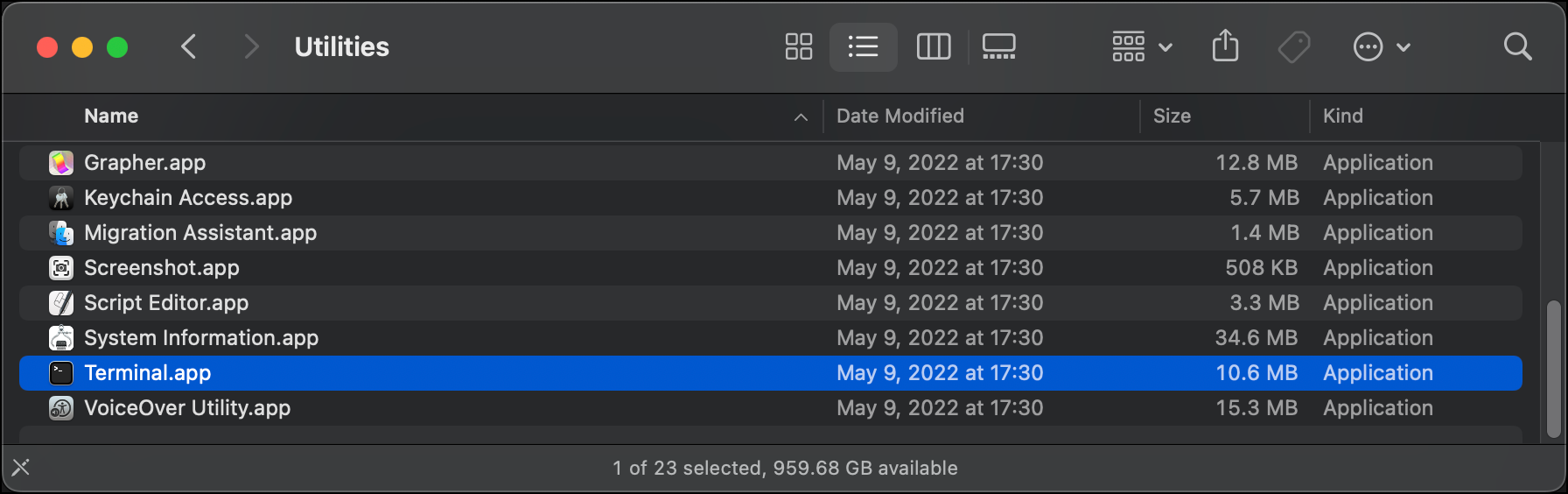
- Open a command line application. If you are using macOS, you can use the default, Terminal, under Applications > Utilities. You can also install a separate terminal application. I use iTerm2.
- On the command line, navigate to the folder where you put the OPNsense files.
$ cd isos -
This series of commands is used to confirm that you have downloaded the correct public key from OPNsense, and that OPNsense’s PKI infrastructure can verify that your download of the OPNsense installation media (
<OPNsense-filename>.iso.bz2) has not been compromised:$ openssl base64 -d -in <OPNsense-filename>.bz2.sig -out /tmp/image.sig- This command should not produce output.$ openssl dgst -sha256 -verify <OPNsense-version>.pub -signature /tmp/image.sig <OPNsense-filename>.iso.bz2—when this command displays the outputVerified OK, which indicates that your installation media is safe to use.
- Unzip the installation media:
$ gunzip <OPNsense-filename>.iso.bz2 - This creates a new file within the folder,
<OPNsense-filename>.iso.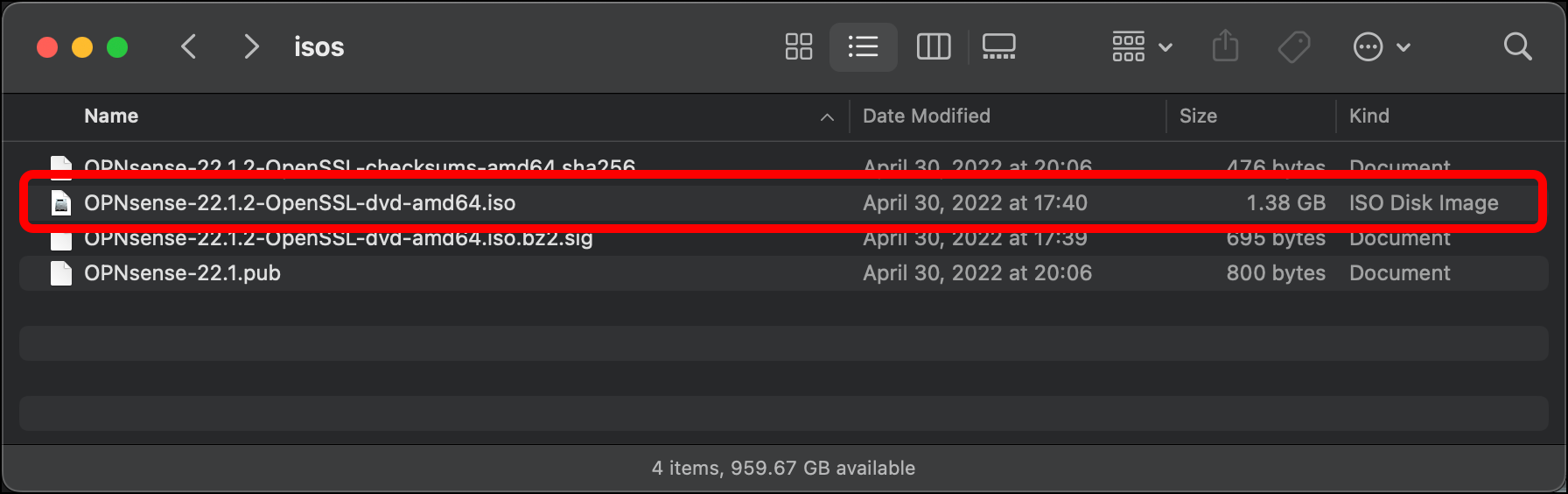
Your OPNsense ISO is ready for installation.
Download, Validate, and Prepare the Security Onion Installation Media
-
You can download the current Security Onion ISO from their GitHub.
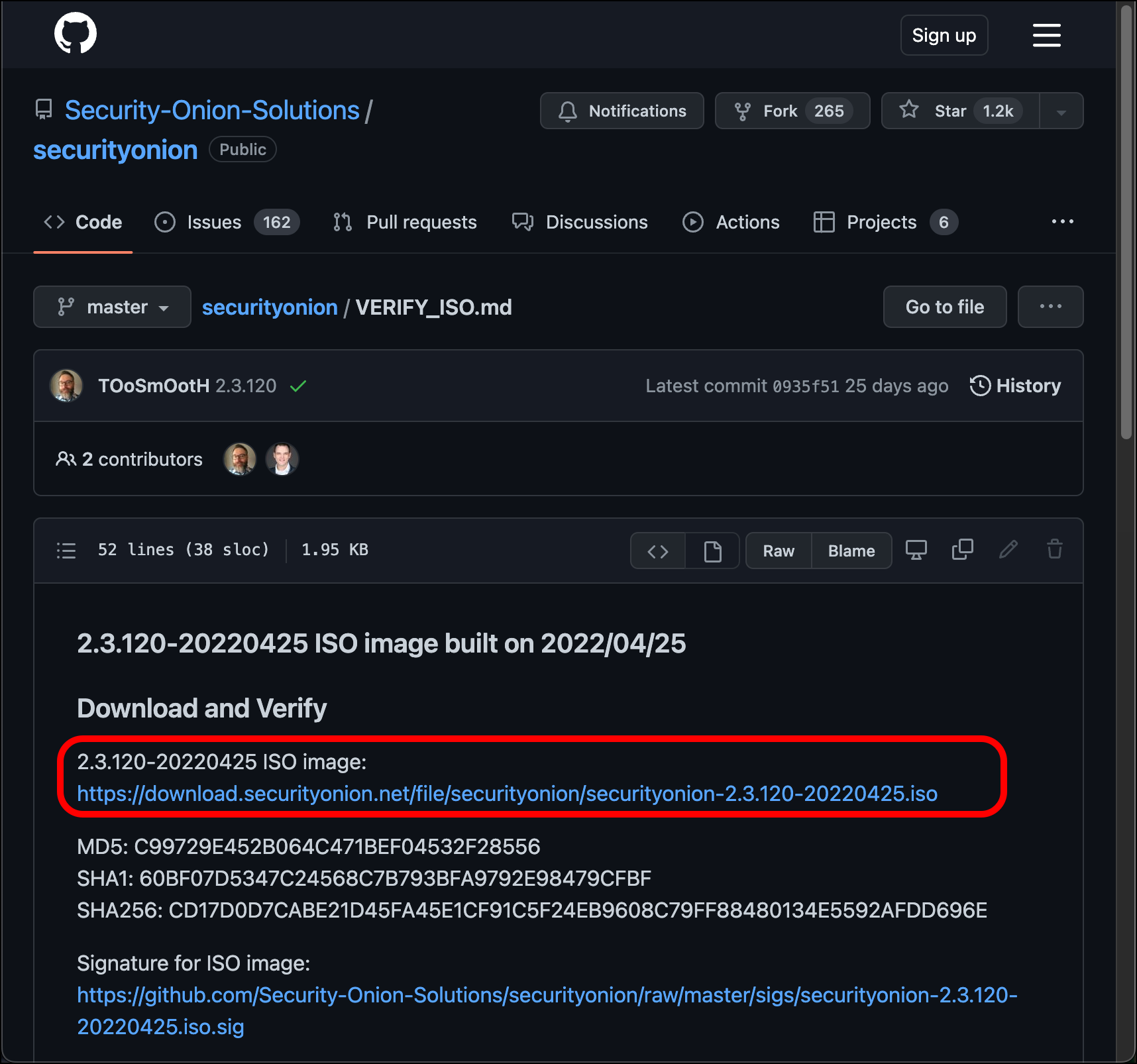
- Place the ISO file in the same location that you put your OPNsense files.
- Confirm the checksum against Security Onion’s GitHub:
$ shasum -a 256 securityonion-<version-number-<release-date>.isousing the hashing algorithm of your choice. (This example uses SHA-256.)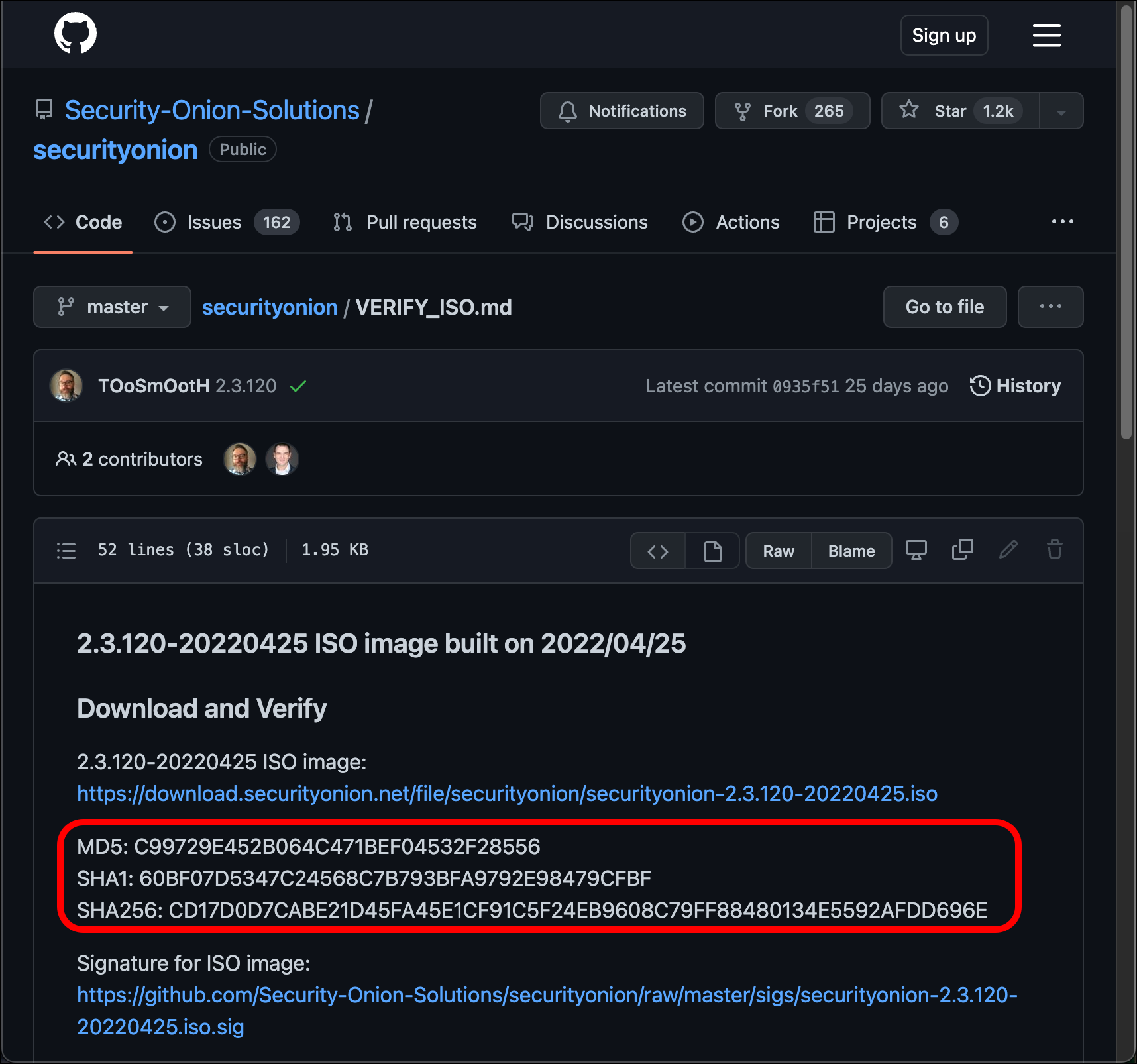
Your Security Onion ISO is ready for installation.